

















Settings
Three sections under Settings govern every quiz: Contact and privacy, Notifications and Look. An info icon next to each setting explains it and names the default.
Contact and privacy
Contact and privacy sets what the contact card links to and offers, how long the module keeps personal data, and how often one visitor may submit.

- Privacy policy page.
- Keep contacts for (months).
- Newsletter box on the contact card.
- Submissions per visitor per hour.
- Save.
| Setting | What it does | Default |
|---|---|---|
| Privacy policy page | The page of your shop (a CMS page) that the contact card links to as its privacy policy. The checklist reminds you to choose one when a quiz asks for contact details. | None |
| Keep contacts for (months) | Contacts older than this are deleted, and completed quizzes older than this lose the customer, visitor and IP address details, once a day. 0 keeps everything for ever. Whole numbers from 0 to 120. | 12 months |
| Newsletter box on the contact card | Adds an unticked box “Also send me news and offers” to the contact card. A ticked box subscribes the address through the Newsletter subscription module, which sends its own confirmation. Offered only once that module (ps_emailsubscription) is installed and enabled. | Off |
| Submissions per visitor per hour | How many quizzes one visitor may submit in an hour, counted on a scrambled form of their IP address. Further submissions are refused with a message and nothing is stored. Whole numbers from 1 to 1000. | 20 |
Press Save to keep your changes. The module saves nothing else until you do.
Notifications
Notifications says who hears about a new contact.

- Email the staff about new contacts.
- Staff addresses.
- Save.
| Setting | What it does | Default |
|---|---|---|
| Email the staff about new contacts | Sends one email to the addresses below for each new contact, with the quiz, the contact details, the answers and the first products. | On |
| Staff addresses | One or more email addresses, separated by commas. When the staff email is on, at least one valid address is needed. | The shop's email address |
The email never delays the shopper: if it cannot be sent, the contact is still saved and the failure is written to the PrestaShop log.
Look
The quiz uses your theme's font, buttons and colours. Look offers one choice: an accent colour.
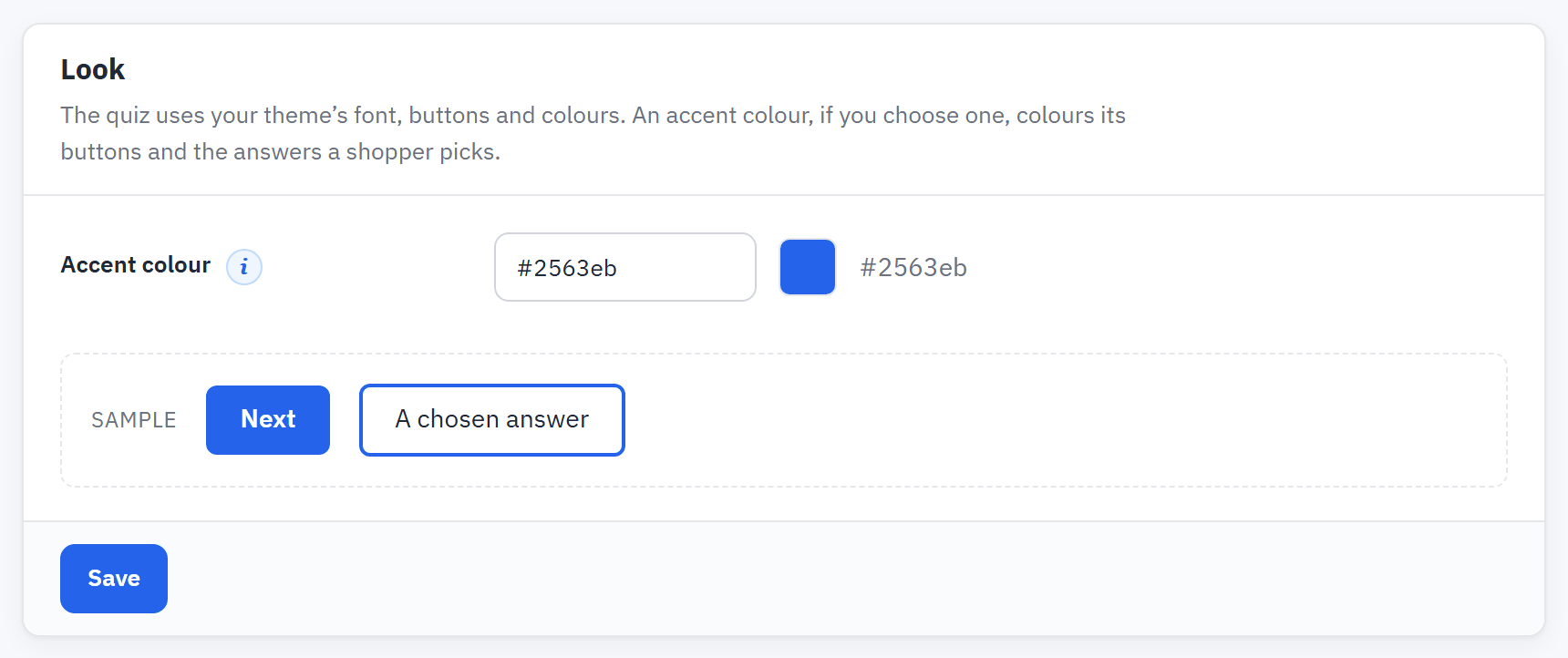
- Accent colour, written as #rrggbb.
- The Sample of a button and of A chosen answer.
Write the colour as #rrggbb, for example #2563eb. It colours the quiz's buttons and the answers a shopper picks. Leave it empty to keep your theme's colours. Classic's grey text, grey fields and light blue buttons do not reach AA contrast on their own, so a stronger accent colour helps; see Known PrestaShop issues.
Settings in a multistore
In a multistore, the shop list at the top of the page decides where a setting is saved: for all shops, for a shop group or for one shop. Under each form a line says which. A shop or a group that has no value of its own follows the level above it.
- To give a shop its own value, choose the shop at the top and save a value that differs from the inherited one.
- To make a shop follow again, tick Use the value of All shops (or Use the value of the shop group) next to the setting and save.
- Saving the value a shop already inherits does not pin it. To pin a value, save a different one first.