
















People and completed quizzes
Two lists keep what shoppers leave behind: People to contact for those who gave an email address or a phone number, and Completed quizzes for everyone who reached the results.
People to contact
This list shows the shoppers who left their email or phone at the end of a quiz, newest first. Contacts come from the contact card, so switch the card to Optional (shoppers can skip) or Required in the settings of a quiz to collect them (The contact card).
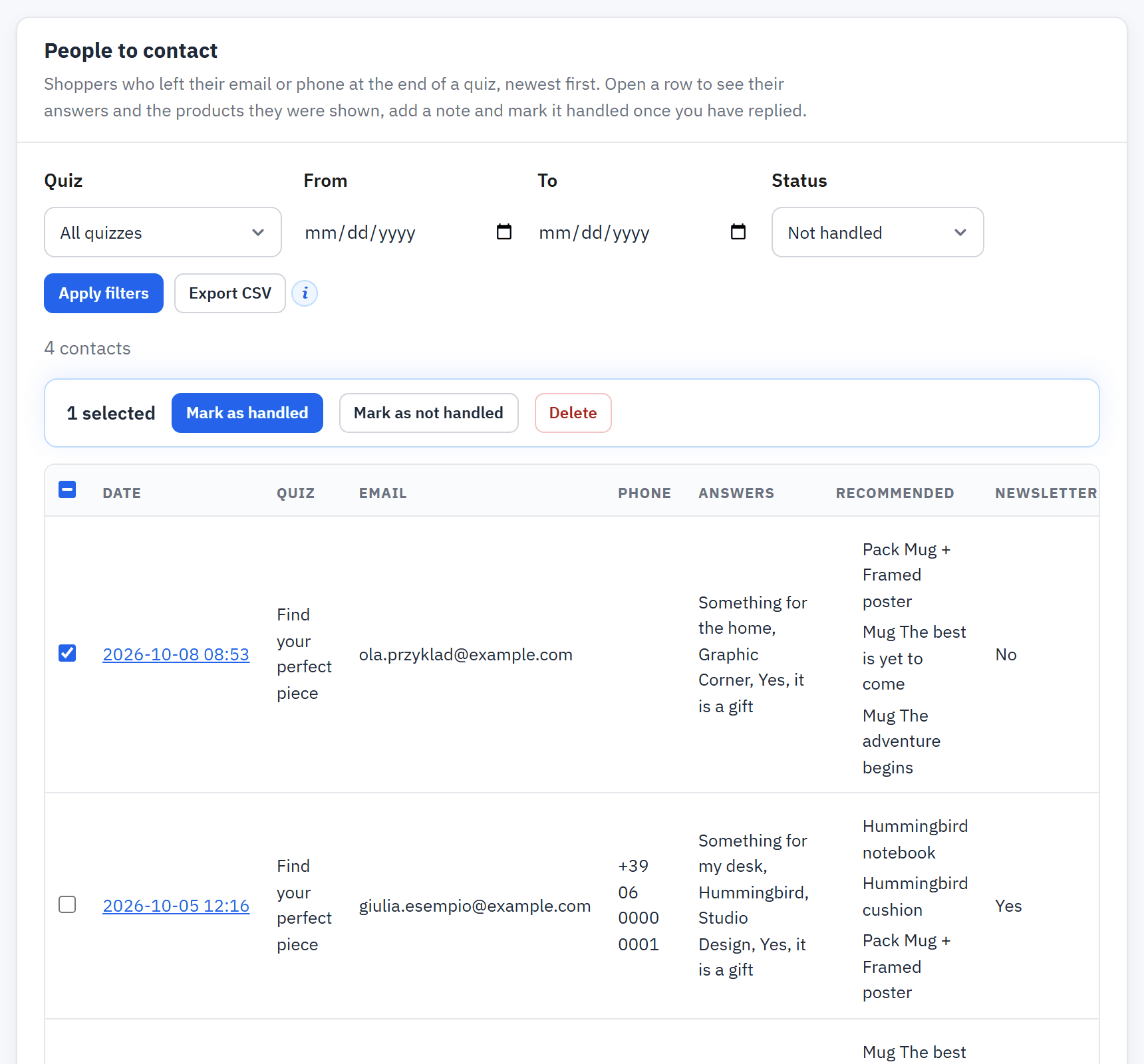
- The filters: status, quiz, dates, shop.
- One row: date, quiz, Email, Phone, answers, the first three recommended products, Newsletter and Handled.
- The tick box of a row and the actions for the selected rows.
- Export CSV.
Filter the list
The list opens on Not handled. Use the filters to look at Handled contacts, at one Quiz, between a From date and a To date, or in one Shop. Press Apply filters, or Clear filters to start over.
Open a contact
A row opens the full view: every question with the answer as the shopper saw it, every recommended product, a note field and the actions. Type a note and press Save note; press Mark as handled once you have replied. Mark as not handled puts the contact back on the list. The list shows who handled the contact and when.
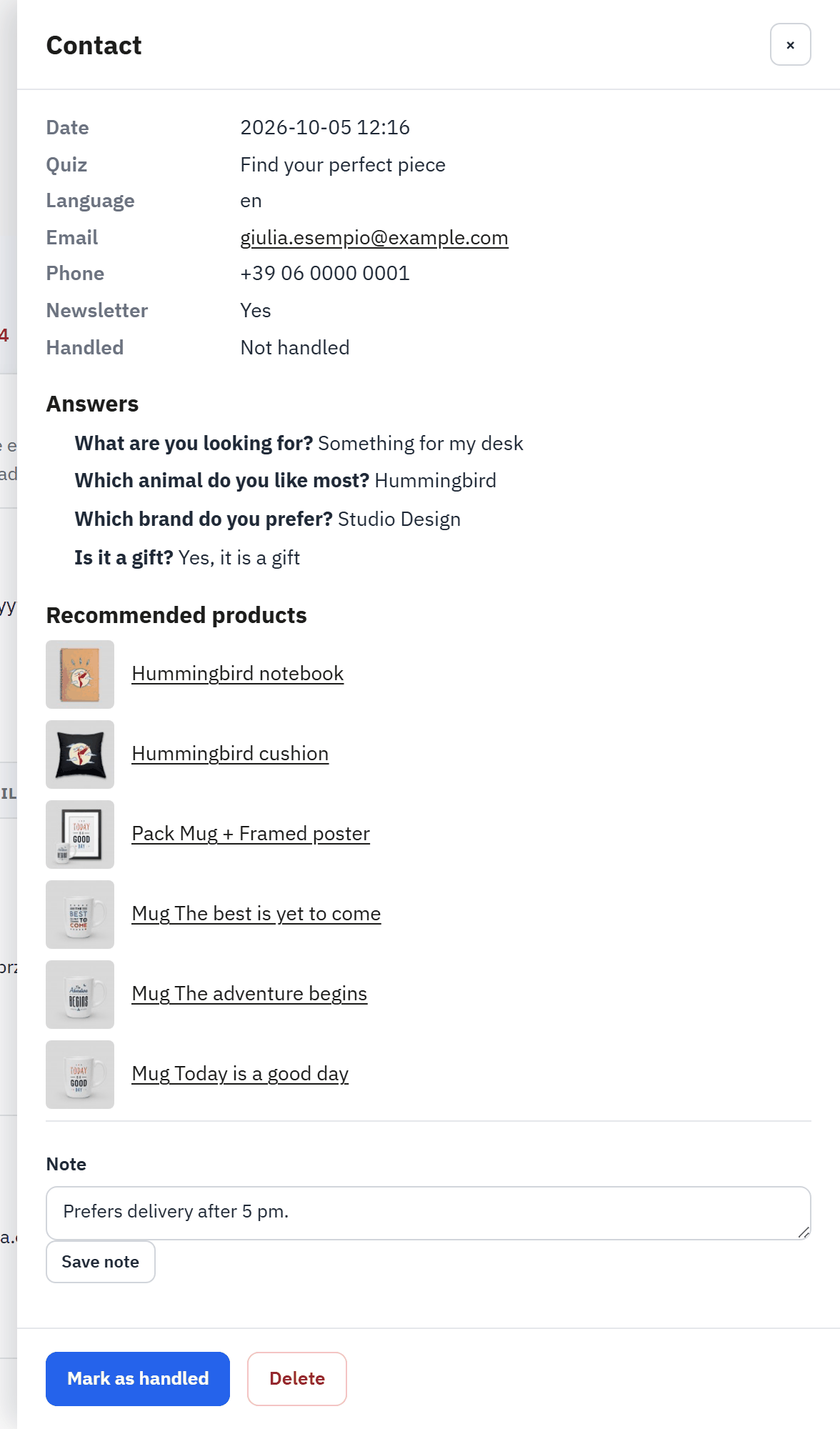
- The contact details and the newsletter choice.
- The answers, with the wording the shopper saw.
- The recommended products.
- The Note field and Save note.
- Mark as handled and Delete.
Several contacts at once
Tick the rows, or the box that selects every row of the page, then choose Mark as handled, Mark as not handled or Delete. A deletion asks for confirmation that states the number of contacts and the shops, and cannot be undone. Up to 500 rows can be selected at a time.
Completed quizzes
A completed quiz is recorded each time a shopper reaches the results of a published quiz, with or without contact details. Trials with Try it and previews are not recorded.
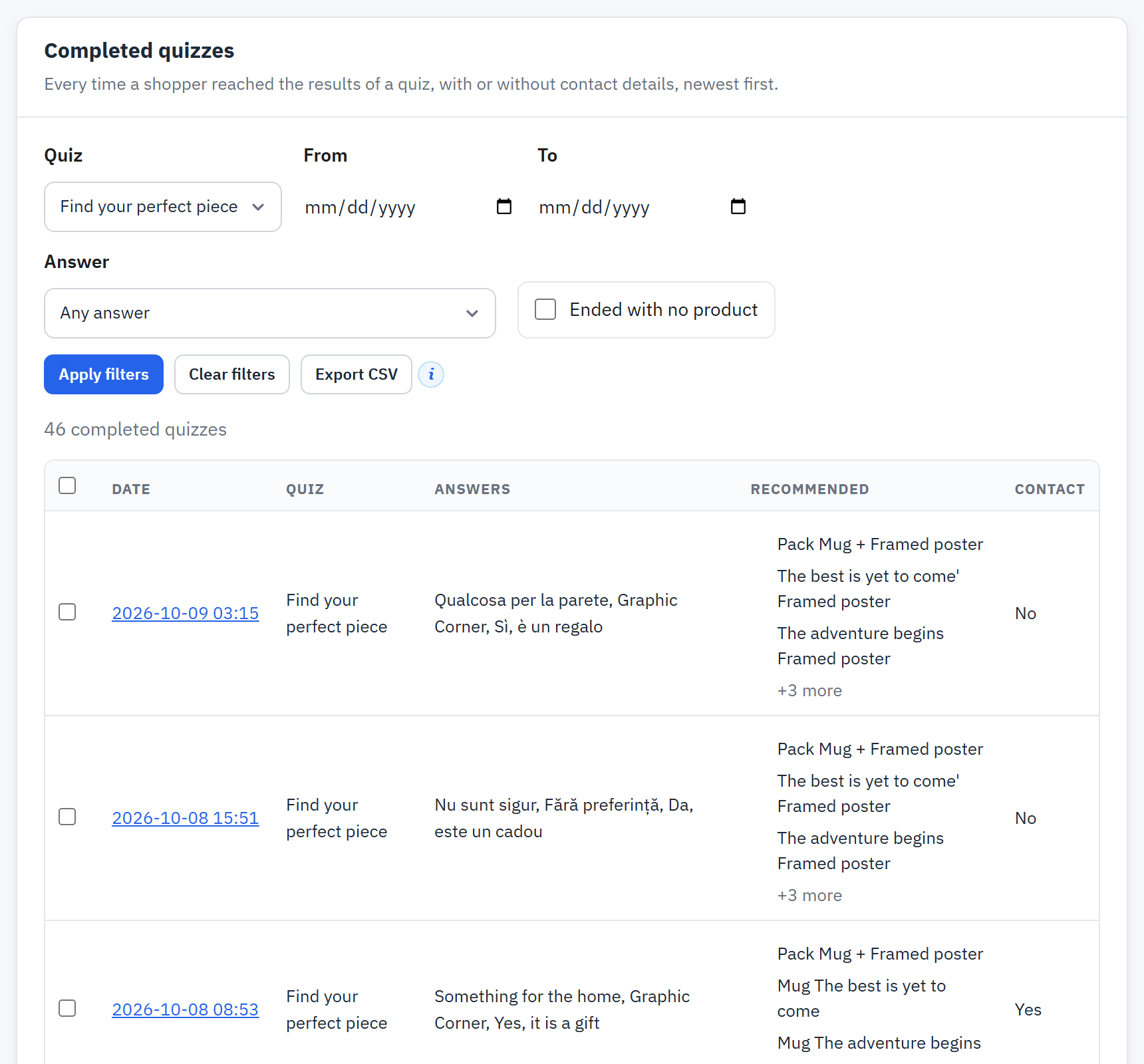
- The filters, including the Answer filter once a quiz is chosen.
- One completed quiz: date, quiz, answers and products.
- Export CSV.
The filters are the Quiz, the dates, the Answer, the Shop and Ended with no product. Choose a quiz first to filter by one of its answers. A row opens the same full view as a contact. If the quiz was deleted since, the row says so, and the answers appear only as far as they were stored.
Export to CSV
Export CSV downloads every row that matches the filters, not only the page you see, as a CSV file (UTF-8, comma-separated) for a spreadsheet. If your spreadsheet opens the file in one column, use Data > From Text/CSV and choose comma.
| List | Columns |
|---|---|
| People to contact | Date, Quiz, Contact, Email, Phone, Newsletter, Language, Shop, Answers, Products, Products count, Handled by, Handled at, Note |
For safety, a cell that begins with =, +, -, @, a tab or a carriage return gets an apostrophe in front, so a shopper's text cannot act as a formula in your spreadsheet. If an export could not be read to its end, the file says so; export again.
The staff email
When notification is on, each new contact sends one email to the staff addresses you set in Notifications. It carries the quiz, the contact's email, phone and newsletter choice, the date, the answers, the first recommended products and a link to the contact in the back office. Reply to the email to answer the shopper. It is written in the shopper's language, in one of the module's seven languages; for another language it falls back to the shop's default language, then to English.
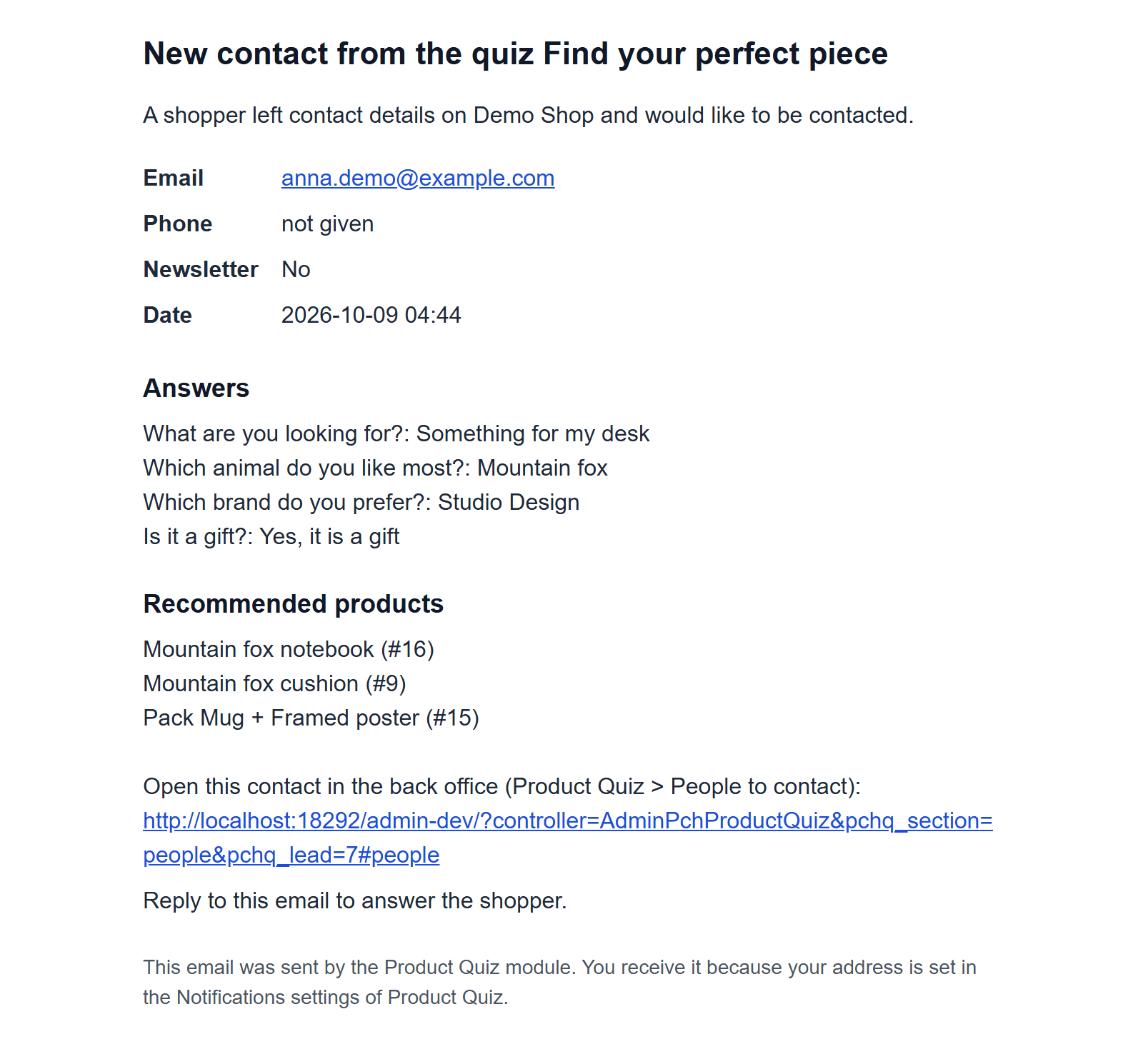
- The subject names the quiz.
- The contact details.
- The answers and the recommended products.
- The link to the contact in the back office.
The email never delays the shopper by design: if it cannot be sent, the contact is still saved and the failure is written to the PrestaShop log. See also the known limit about servers without PHP-FPM in Limits of the module.
How long data is kept
A completed quiz stores the answers, the results and the language. A contact adds the email, the phone number and the newsletter choice the shopper gave. The visitor's address is kept only as a salted hash, to limit how often one visitor may submit. Once a day, contacts older than the retention period you set in Contact and privacy are deleted, and older completed quizzes lose the customer link and the hash. Personal data and GDPR covers personal data requests.
Reports
Reports shows how one quiz did over a period: completions per day, the answers chosen, the products recommended and the contacts collected.
Read a report
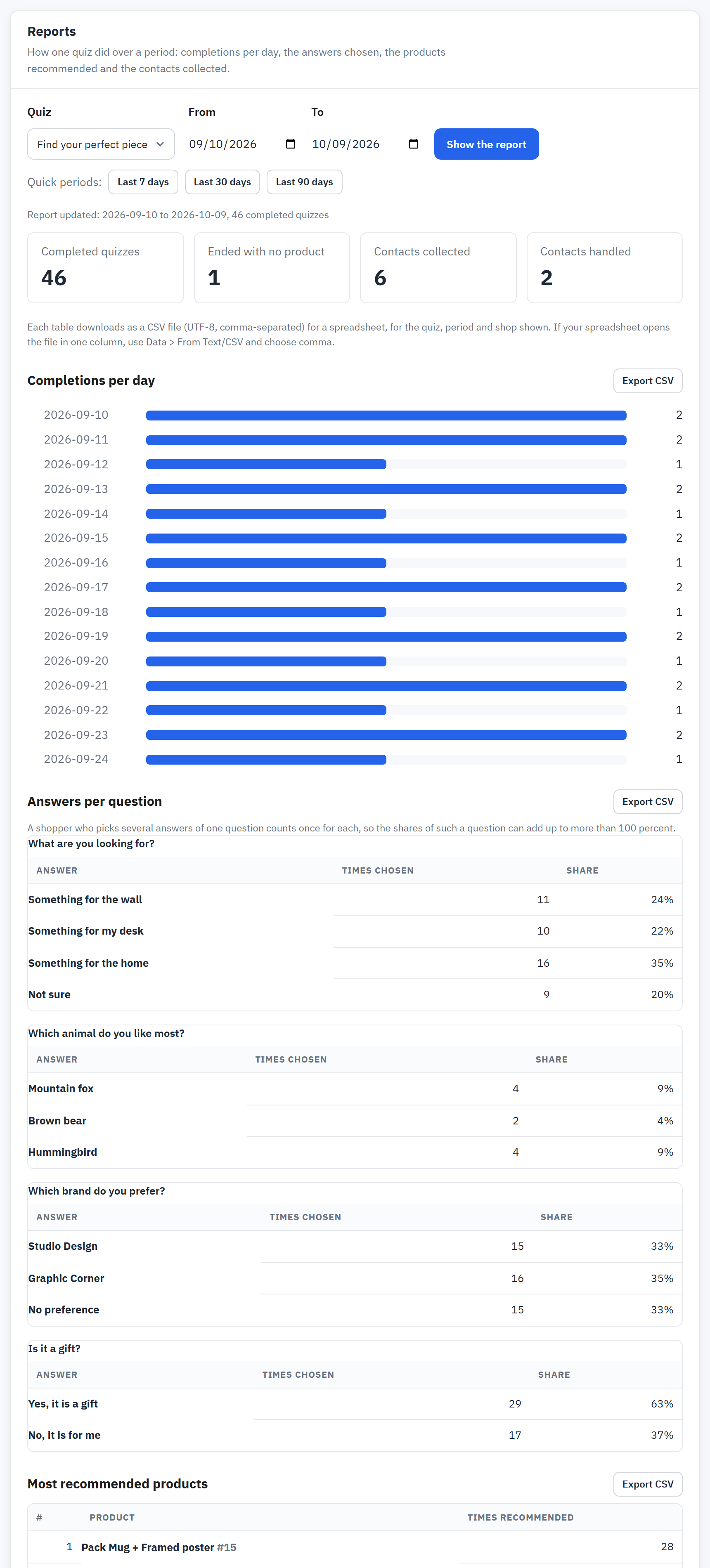
- The filters: Quiz, From, To and Shop, and the quick periods.
- Show the report.
- Completions per day.
- Answers per question.
- Most recommended products.
- Open Reports and choose a Quiz. Reports show what shoppers answered once a quiz is live.
- Choose the period with From and To, or press one of the quick periods (the last 7, 30 or 90 days). A period is 1 to 366 days; the default is the last 30 days.
- In a multistore, choose a Shop or All selected shops.
- Press Show the report.
| Table | What it shows |
|---|---|
| Completions per day | How many shoppers reached the results each day, and how many ended with no product. |
| Answers per question | For each question, how often each answer was chosen (count and share). |
| Most recommended products | The 20 products recommended most often. |
| Contacts collected and Contacts handled | How many contacts the quiz gathered in the period, and how many you marked as handled. |
Each table downloads as a CSV file with Export CSV, for the quiz, period and shop shown, with the same safety rule for cells as the lists (Export to CSV). Trials with Try it and previews appear in no report.