















The overview and your first quiz
The module opens on its overview. It tells you what still needs doing, and for a new module it walks you through five steps to a published quiz.
The page of the module
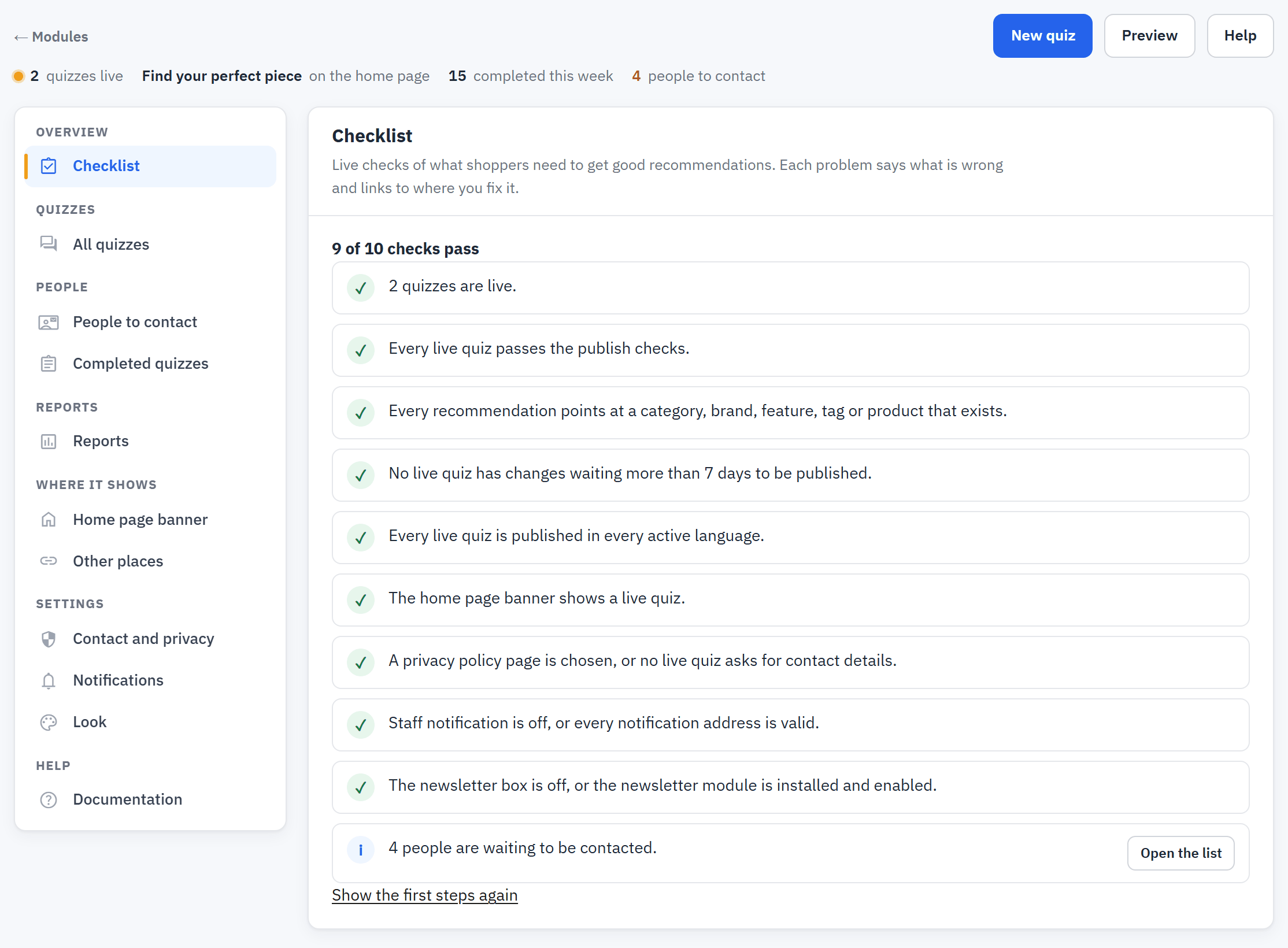
- The top bar: New quiz, Preview and Help.
- The status line: how many quizzes are live, which quiz is on the home page, how many were completed this week and how many people wait to be contacted.
- The navigation, in groups: Overview, Quizzes, People, Reports, Where it shows, Settings and Help.
- The section you have open.
| Group | Sections |
|---|---|
| Overview | Checklist |
| Quizzes | All quizzes; a quiz opens its own workspace |
| People | People to contact, Completed quizzes |
| Reports | Reports |
| Where it shows | Home page banner, Other places |
| Settings | Contact and privacy, Notifications, Look |
| Help | Documentation |
Preview in the top bar opens the live quiz chosen for the home page, or the first live quiz. Help opens Documentation, the module's own help page (The Help section of the module). Some lists load only when you open them, so the page itself opens quickly.
The first steps
Until you have done them once, the checklist shows a track of five numbered steps. Each step opens the right place, and is ticked as soon as it is done.
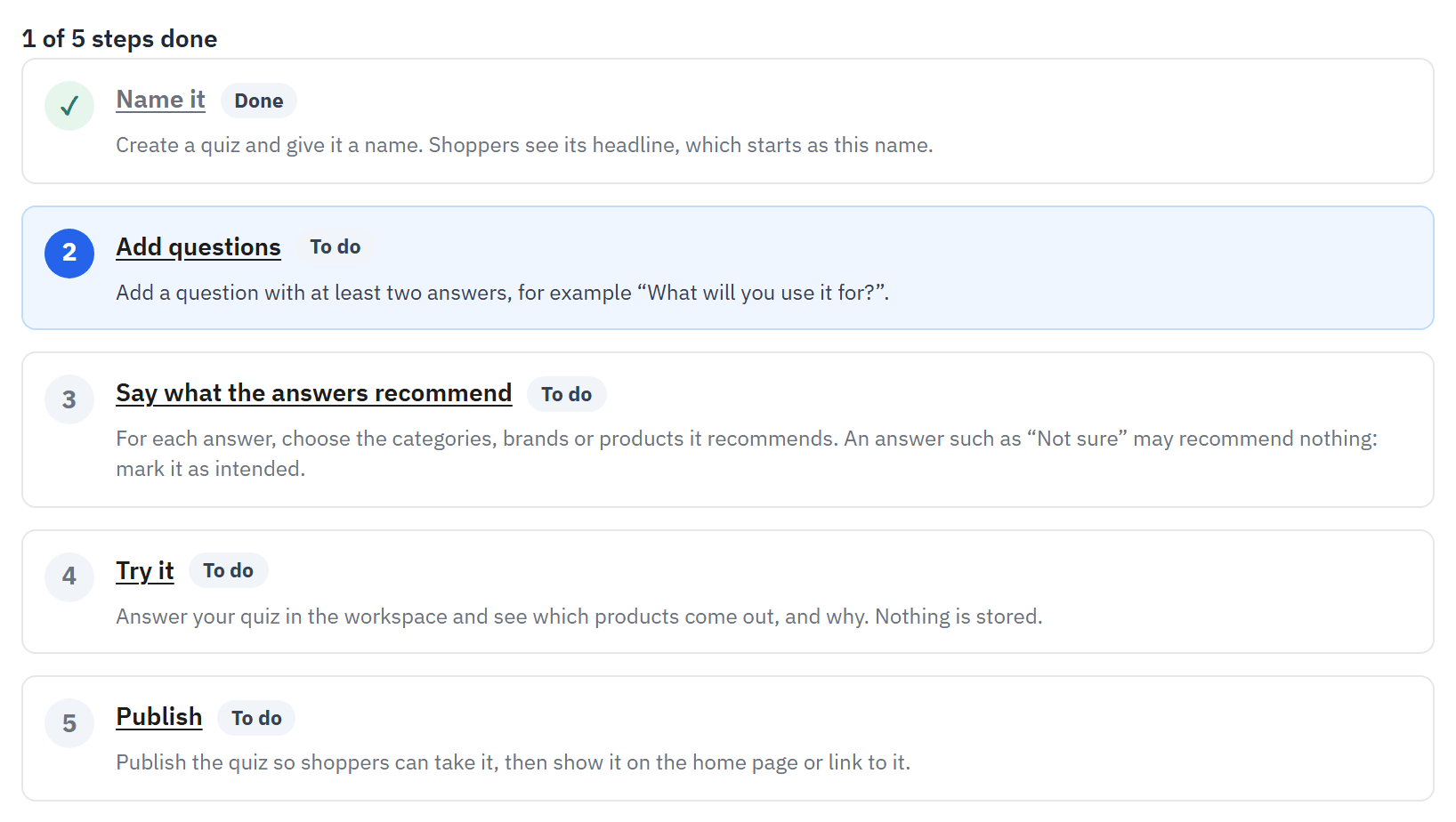
- The progress of the track.
- A step that is done.
- The next step, with a link to where you do it.
- Name it: create a quiz and give it a name. Shoppers see its headline, which starts as this name.
- Add questions: add a question with at least two answers, for example "What will you use it for?".
- Say what the answers recommend: for each answer, choose the categories, brands or products it recommends.
- Try it: answer your quiz in the workspace and see which products come out, and why. Nothing is stored.
- Publish: publish the quiz so shoppers can take it, then show it on the home page or link to it.
When all five are done, the track gives way to the normal checklist. You can open it again with Show the first steps again in Documentation.
The checklist
After the first steps, the Checklist lists live checks of what shoppers need to get good recommendations. Each problem says what is wrong and carries a Fix link to where you fix it. The checks are:
- at least one quiz is live;
- every live quiz passes the publish checks (The publish checks);
- no live quiz has changes waiting for publication for more than seven days;
- a privacy policy page is chosen when a live quiz asks for contact details;
- when the staff email is on, every address is valid;
- the newsletter box is on only when the newsletter module is installed and enabled;
- every live quiz is published in every active language;
- every recommendation points at a category, brand, feature, tag or product that exists;
- the home page banner shows a live quiz, or is off.
The results are grouped as Needs attention, To do and Passed.
All quizzes
All quizzes shows one card per quiz. From a card you open the workspace, try the quiz, pause it, copy it or delete it.
The list of quizzes
Each quiz asks its own questions and recommends its own products. Shoppers see a quiz once it is published and switched on.
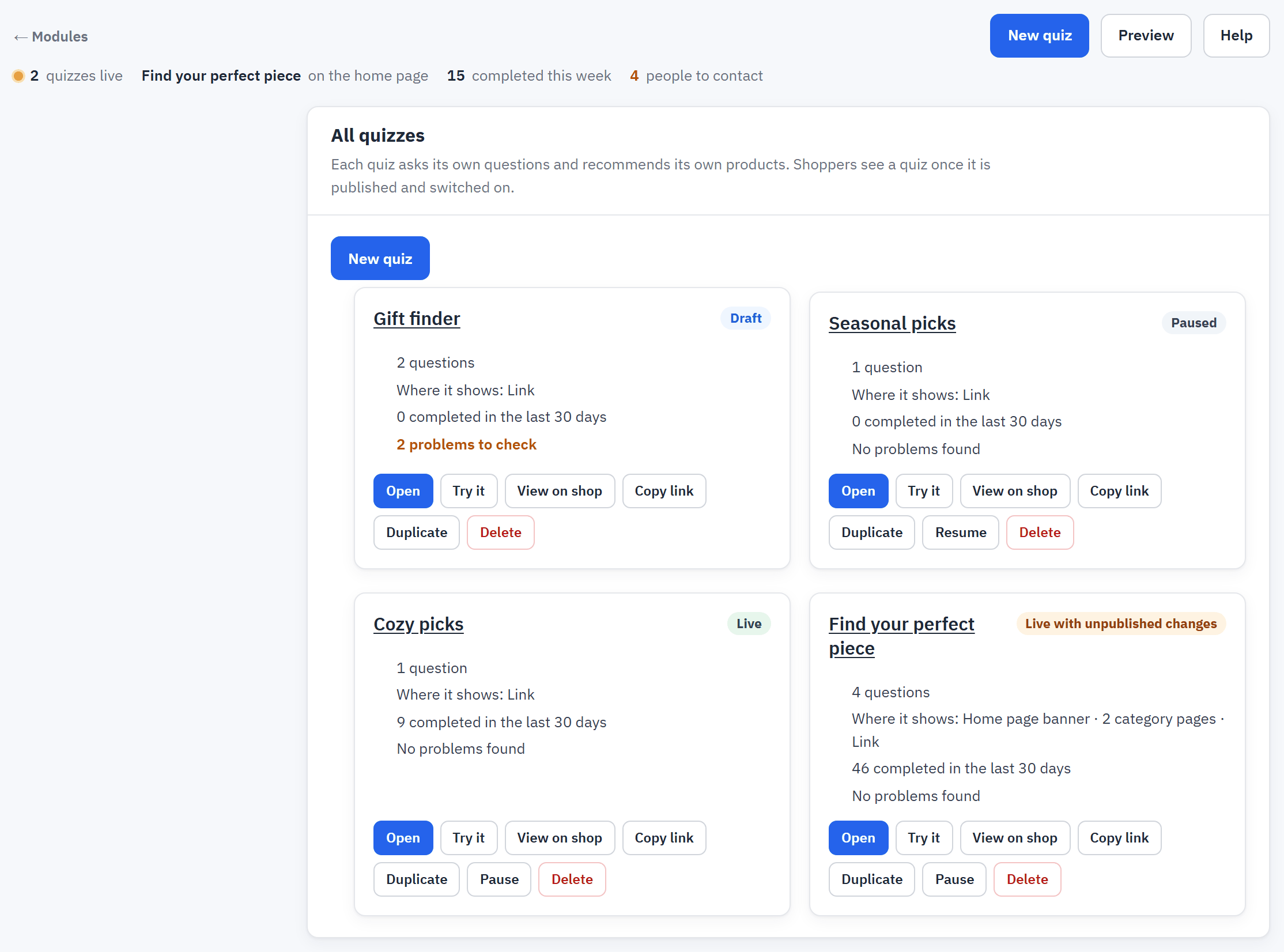
- New quiz creates a quiz.
- The name of a quiz and its state.
- Its number of questions, the problems to check, and how many shoppers completed it in the last 30 days.
- Where it shows: the home page banner, category pages and its link.
- The actions of the card.
The states of a quiz
| State | Meaning |
|---|---|
| Draft | Never published. Shoppers see nothing. |
| Live | Published, switched on, with no change waiting. |
| Live with unpublished changes | Shoppers see the last published version; your later changes wait for Publish changes. |
| Paused | Published but switched off: shoppers no longer see it. |
The actions of a card
- Open opens the workspace (Building a quiz in the workspace).
- Try it opens the workspace on the trial (Try it).
- View on shop opens the quiz on your shop.
- Copy link copies the address of a live quiz.
- Duplicate copies the quiz with its questions, answers, rows, rules and texts into a new draft, switched off, in the shops you are editing. The copy is named after the original, with the word for a copy in your language after it.
- Pause and Resume switch a published quiz off and on at once, without publishing.
- Delete removes the quiz, its questions, answers, rules and published version. Completed quizzes and contacts are kept. You confirm by typing the name of the quiz.
Create a quiz
- Press New quiz, in the top bar or on the list.
- Type the Name of the new quiz. Only the back office shows this name: shoppers see the headline, which starts as this name and can be changed in the quiz.
- Press Create the quiz. The workspace opens.
The example quiz
When you have no quiz yet, the list offers two buttons: Create an example quiz and Start from scratch.
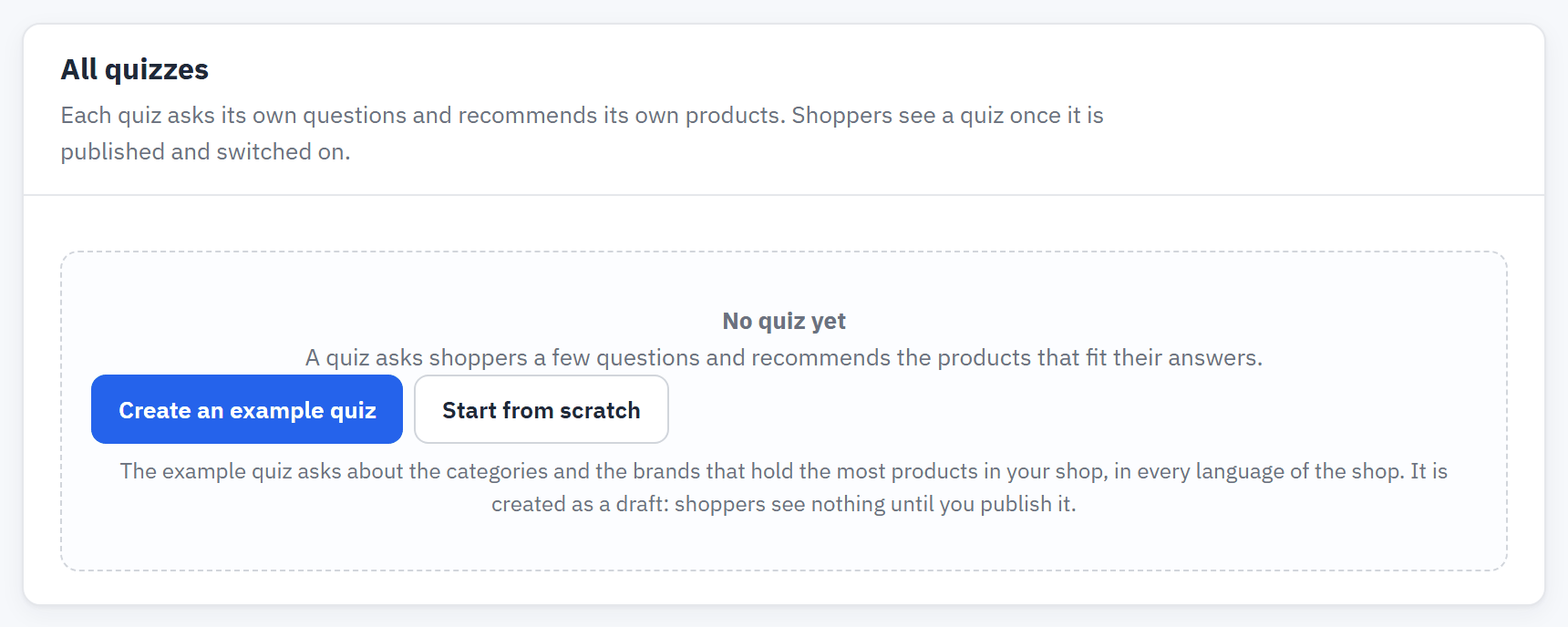
- Create an example quiz.
- Start from scratch.
The example quiz asks about the categories and the brands that hold the most products in your shop, in every language of the shop. The first question offers up to four main categories, each recommending its category as Strong. The second asks which brand the shopper prefers, with up to four brands that each recommend their brand as Normal, plus a "No preference" answer that recommends nothing on purpose. It is created as a draft: shoppers see nothing until you publish it.