

















What shoppers see
This chapter shows the quiz as a shopper meets it: the questions, the contact card and the results. Knowing it helps you write better texts.
The quiz page
A quiz lives at /quiz/<address> on your shop, or at the module's plain address when friendly URLs are off. The page title is the quiz's headline, and the headline is the main heading of the page. The introduction is shown under it. The search-engine description is the introduction without formatting, cut at 160 characters.
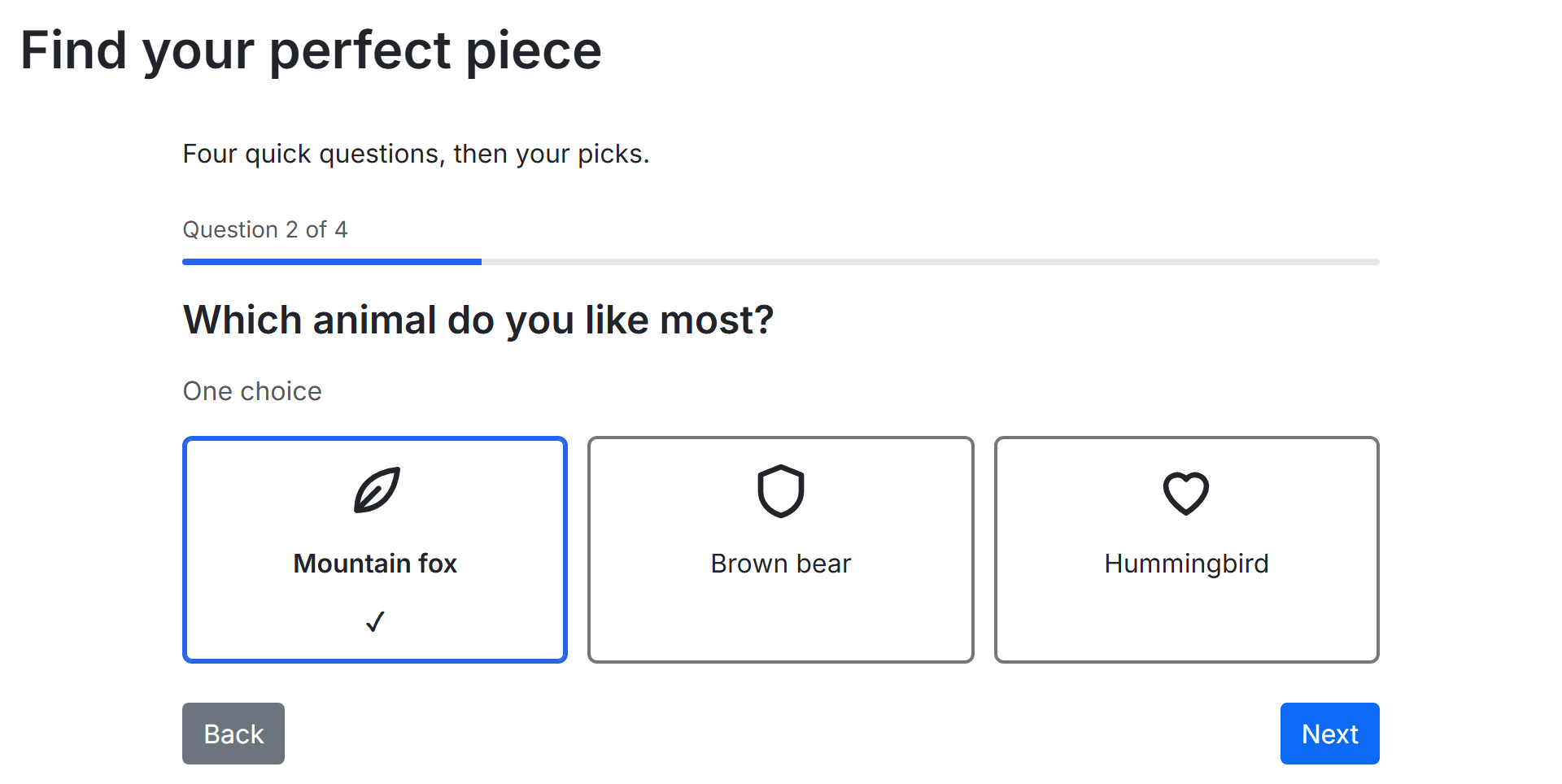
- The headline of the quiz.
- The progress, such as “Question 2 of 4”.
- The question, its hint and its answers.
- Back and Next.
- One question is shown at a time. Moving to a question puts the keyboard focus on its heading and announces the progress to screen readers.
- A one-choice question lets the shopper pick one answer; a several-choices question shows Choose all that apply; a dropdown shows Choose an answer.
- The last question's button reads See my results.
- The browser's Back button goes one question back and keeps the answers.
- Questions with a condition appear only when the earlier answers call for them.
- The page works with the keyboard alone and with screen readers, in right-to-left languages too, and meets the WCAG 2.1 AA contrast rules on Classic and Hummingbird, with one exception described in Known PrestaShop issues.
- Without JavaScript, the page says that the quiz needs it.
The contact card
When the quiz has a contact card, it appears before the results.
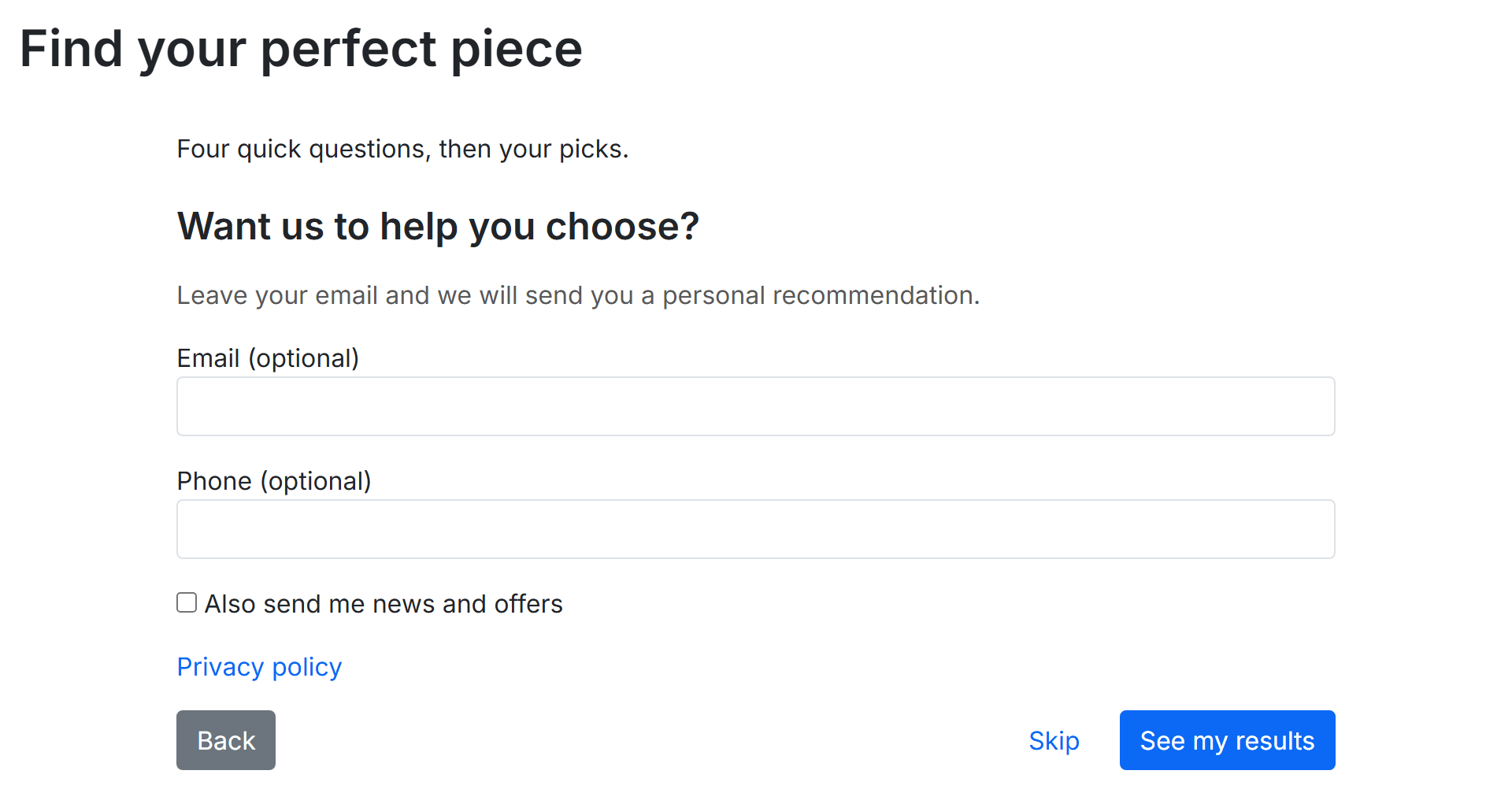
- Your title and explanation.
- The email field, marked optional or required, and the optional phone field.
- The link to the privacy policy page.
- The newsletter box, when you turned it on.
- See my results and, for an optional card, Skip.
The card is a real form: labelled fields, Enter submits, and errors are announced next to the field. When the card is Required, the shopper must give a valid email address. The newsletter box, “Also send me news and offers”, is unticked and separate from the contact: a shopper can leave contact details without subscribing. A ticked box subscribes the address through PrestaShop's newsletter subscription module, which sends its own confirmation.
The results page

- Your text above the products.
- A short recap of the answers.
- The recommended products, as your theme's normal product cards.
- Start again.
The page is full width on Classic and Hummingbird. It is not indexed by search engines. When no product fits, the shopper reads your When nothing fits text and Start again instead of an empty list. A product appears only if it is active, visible in the catalogue and sold in the current shop, and only as the quiz's Out-of-stock products choice allows.
Protection against abuse
Answers are sent with the shop's security token, a hidden field that real visitors never fill, and a limit per visitor. By default one visitor can complete the quiz 20 times an hour; further attempts get a clear message and nothing is stored. You change the limit in Contact and privacy. If a quiz changed or was paused while a shopper was answering, the shopper is asked to reload the page.
Where a quiz shows
A published quiz can be reached from the home page, from the top of your categories, from any template through a widget, and from a link you place anywhere.
The home page banner
Home page banner puts a banner on your home page that invites shoppers to take one quiz. It shows the quiz you choose, and only while that quiz is live in the shop.
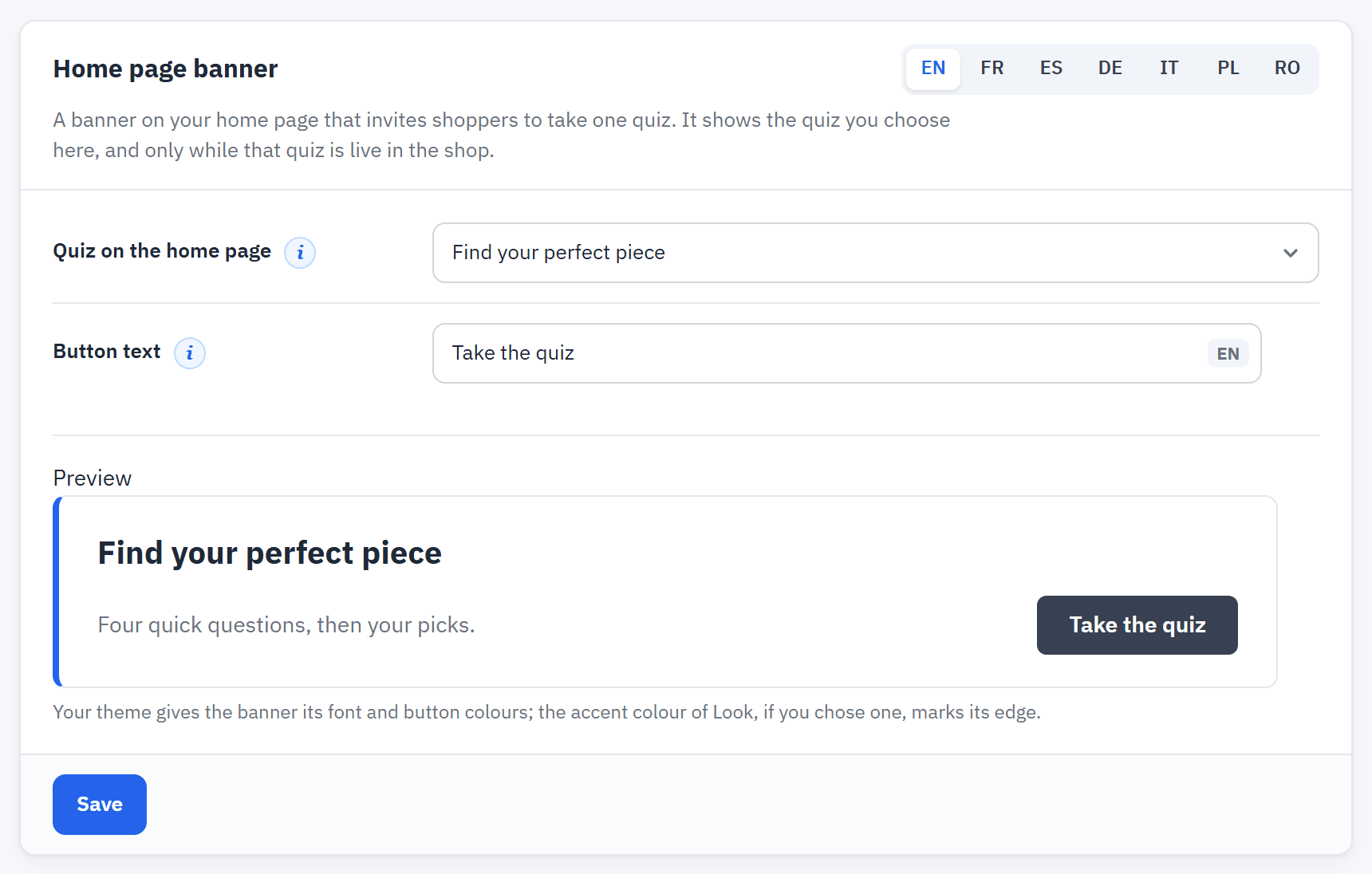
- Quiz on the home page: Off: no banner on the home page or one live quiz.
- Button text in each language.
- Preview of the banner.
- Save.
- The banner is never automatic. Only live quizzes are listed; a paused, unpublished or deleted quiz shows no banner. Default: Off.
- Button text is the text of the banner's button in each language, at most 255 characters. Default: “Take the quiz”, translated.
- Your theme gives the banner its font and button colours; the accent colour from Look, if you chose one, marks its edge.

- The banner and its button.
If the quiz chosen for the home page stops being live, the checklist warns you and the home page shows no banner.
Other places
Other places lists each live quiz with its link and its widget, and lets you choose the categories whose pages show a banner at the top.
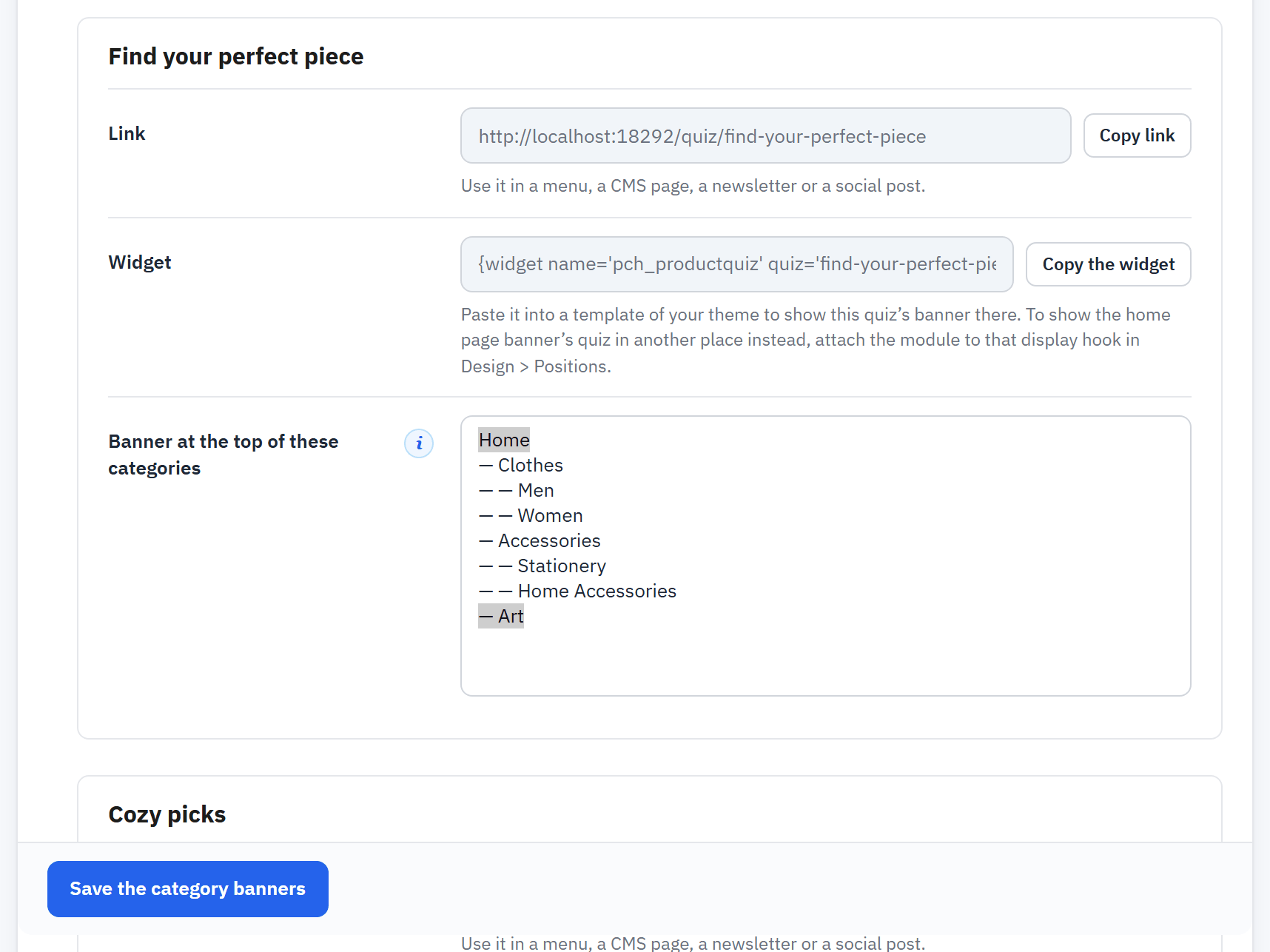
- The Link of a quiz and Copy link.
- The Widget and Copy the widget.
- Banner at the top of these categories.
- Save the category banners.
The link
Use the link in a menu, a CMS page, a newsletter or a social post. Copy link copies it; if your browser does not allow that, the address is selected for you: press Ctrl+C (Cmd+C on a Mac).
The widget
Paste the widget into a template of your theme to show the banner of one quiz there:
{widget name='pch_productquiz' quiz='<slug>'}The slug is the quiz's address (Settings of a quiz). To show the home page banner's quiz in another place instead, attach the module to that display hook in Design › Positions.
Category banners
Choose the categories in Banner at the top of these categories. Hold Ctrl (Cmd on a Mac) to choose several categories or to remove one. The banner shows at the top of each chosen category in the shops where the quiz is live. When several quizzes choose the same category, the oldest quiz shows. A change takes effect at once, without publishing. Default: none.

- The banner above the products of the category.