

















Building a quiz in the workspace
The workspace is where one quiz is written: its questions, what each answer recommends, its rules, its results page and its contact card. Every change saves by itself into a draft, and shoppers see nothing until you publish.
The three columns
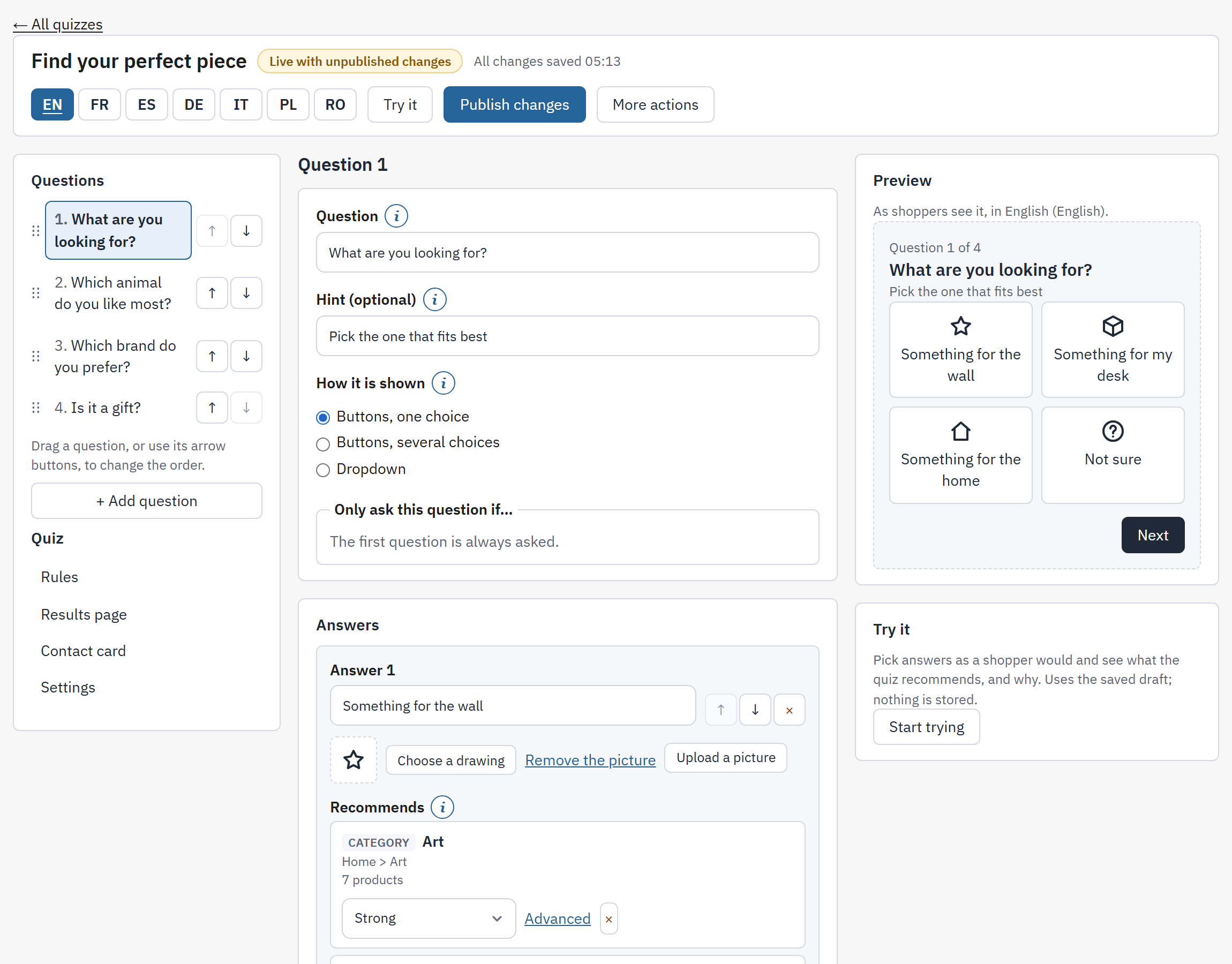
- The header: the quiz name and its state, the saving message, the language tabs, Try it, Publish and the menu of More actions.
- The left column: the Questions in order, Add question, and the parts of the quiz: Rules, Results page, Contact card and Settings.
- The middle column: the part you selected.
- The right column: Preview and Try it, a live picture of what the shopper sees.
Open the workspace from All quizzes with Open. A message in the header tells you the state of your work: Saving… while a change travels, then, for example, “All changes saved 14:02”. If the shop does not answer, the header says the change was not saved and nothing is lost that was saved before.
The header menu holds Discard unpublished changes, Pause or Resume, Duplicate and Delete the quiz.
Questions
Select Add question and type the Question text. Each question has these fields:
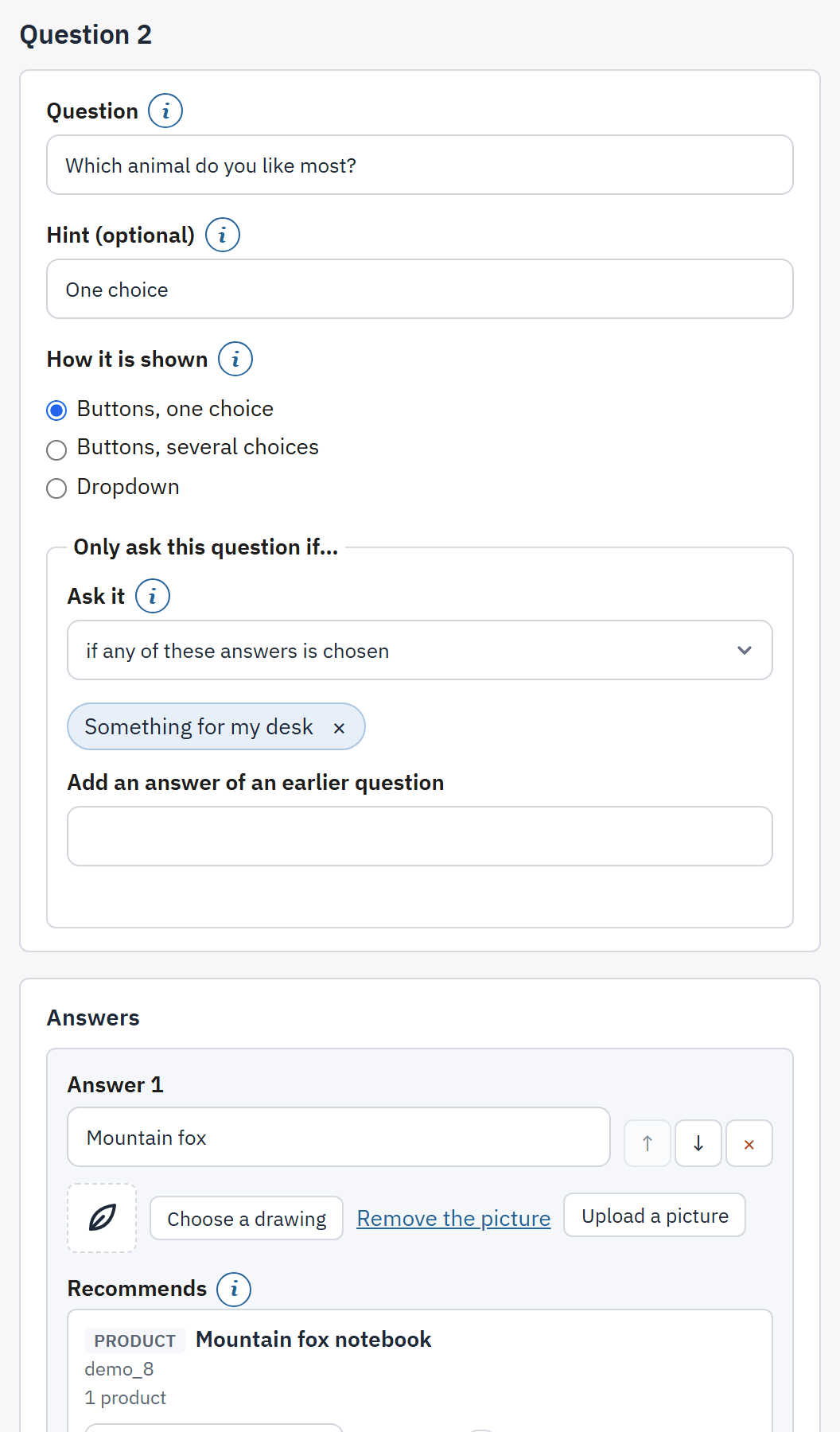
- Question text: shown to shoppers as the heading of this step, in the language of the selected tab.
- Hint (optional): a short line under the question, for example "Pick the one you use most".
- How it is shown.
- Only ask this question if….
- The answers of the question.
| Way to show it | Use it for |
|---|---|
| Buttons, one choice | The default. Every answer is visible at once and can carry a picture. The shopper picks one. |
| Buttons, several choices | The shopper picks all that apply. |
| Dropdown | Long lists, such as sizes. With many answers the workspace suggests it. |
Ask a question only sometimes
By default every shopper sees every question. Only ask this question if… makes a question depend on earlier answers. Choose one of if any of these answers is chosen, if all of these answers are chosen or if none of these answers is chosen, then pick answers with Add an answer of an earlier question. Only answers of earlier questions can be used, and the first question is always asked. The condition is saved as soon as it holds at least one answer.
Answers and pictures
Under the question, Add an answer adds one answer, and Add answers, one per line adds several at once: each line becomes one answer, written in every language, and you translate them afterwards with the language tabs. A question can have up to 200 answers.
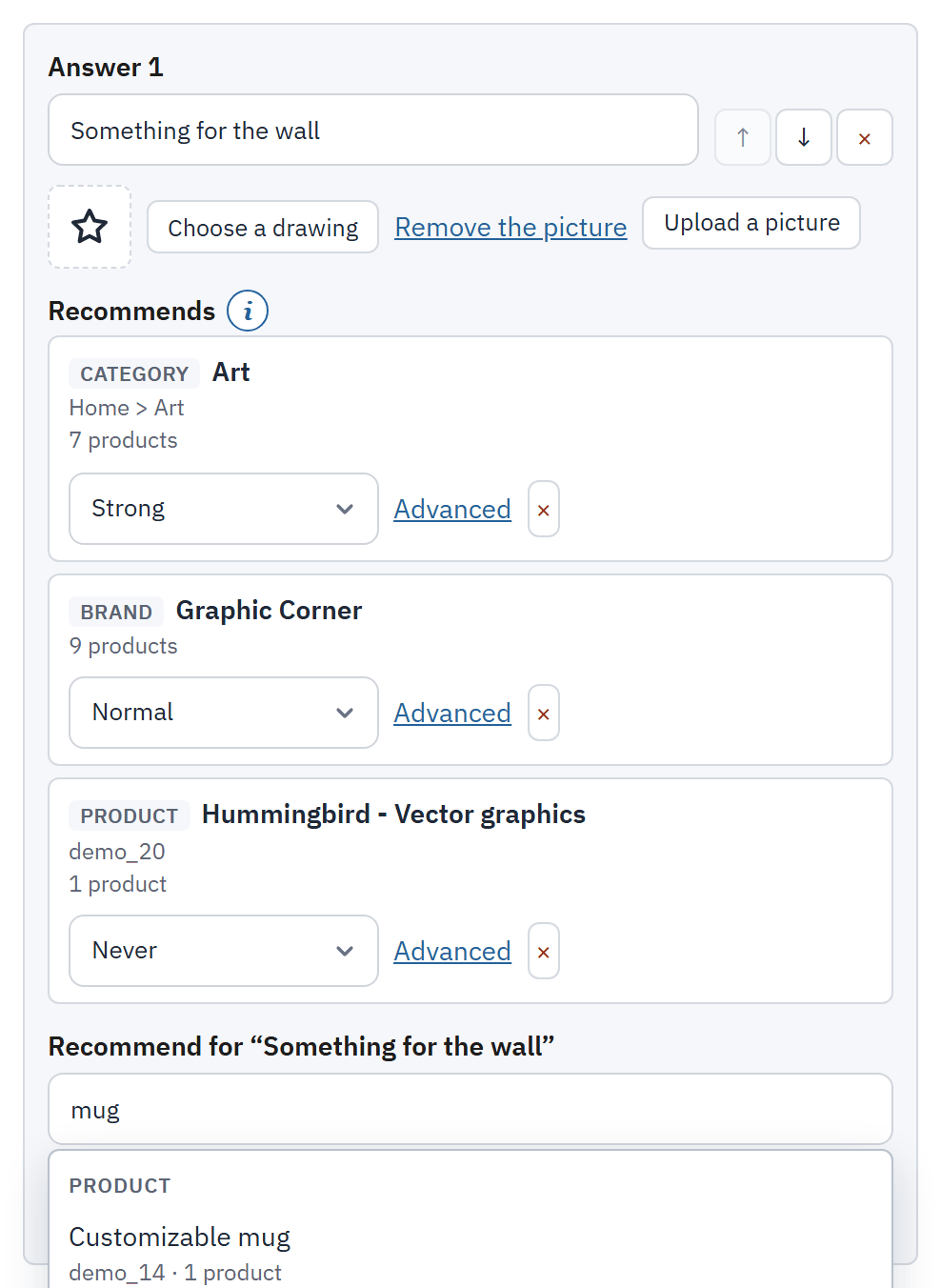
- The text of the answer, in the selected language.
- The picture of the answer: Upload a picture or Choose a drawing.
- Recommends: what the answer points at.
- The strength of one row.
- The search box that finds what to recommend.
An answer can carry a picture, which the buttons then show. Upload a picture accepts a JPEG, PNG, WebP or GIF of at most 2 MB; PrestaShop checks it and resizes it. Or press Choose a drawing for an icon of the module's own set, such as a sun, a heart or a house. Remove the picture takes it away.
What an answer recommends
This is the heart of the quiz. Under Recommends, each row says what a chosen answer points at, and how strongly.
- Click the search box and type at least two characters. One search finds categories, brands, features, tags and products together. The results are grouped by kind, and each shows how many products it selects in the shop you are editing.
- Choose a result. The row is added as Strong.
- Change the strength of the row if the answer is only a weak hint.
| Strength | Points | Meaning |
|---|---|---|
| Strong | 10 | Clearly the right kind of product for this answer. |
| Normal | 5 | A good fit. |
| Weak | 2 | Worth a mention. |
| Never | -1000 | Never show these when this answer is chosen. Never wins over everything else, including a rule that says Always show first. |
Points add up over the shopper's answers, and the products with the most points are shown. Advanced on a row shows the number. A stored value that is none of the four shows as "Custom (7 points)", with its own number of points.
Answers that recommend nothing
An answer with no row shows Recommends nothing yet. and the publish checks warn about it. For an answer such as "Not sure" that should not point at any product, tick That is intended: the warning stops for this answer.
Rows that point at nothing
A row whose category, brand, feature, tag or product no longer exists, or that selects no product in the shop you are editing, is marked on the row with the reason. Remove it or choose something else.
Rules
A rule overrides the points. Open Rules in the left column and press Add a rule. A rule reads as a sentence:
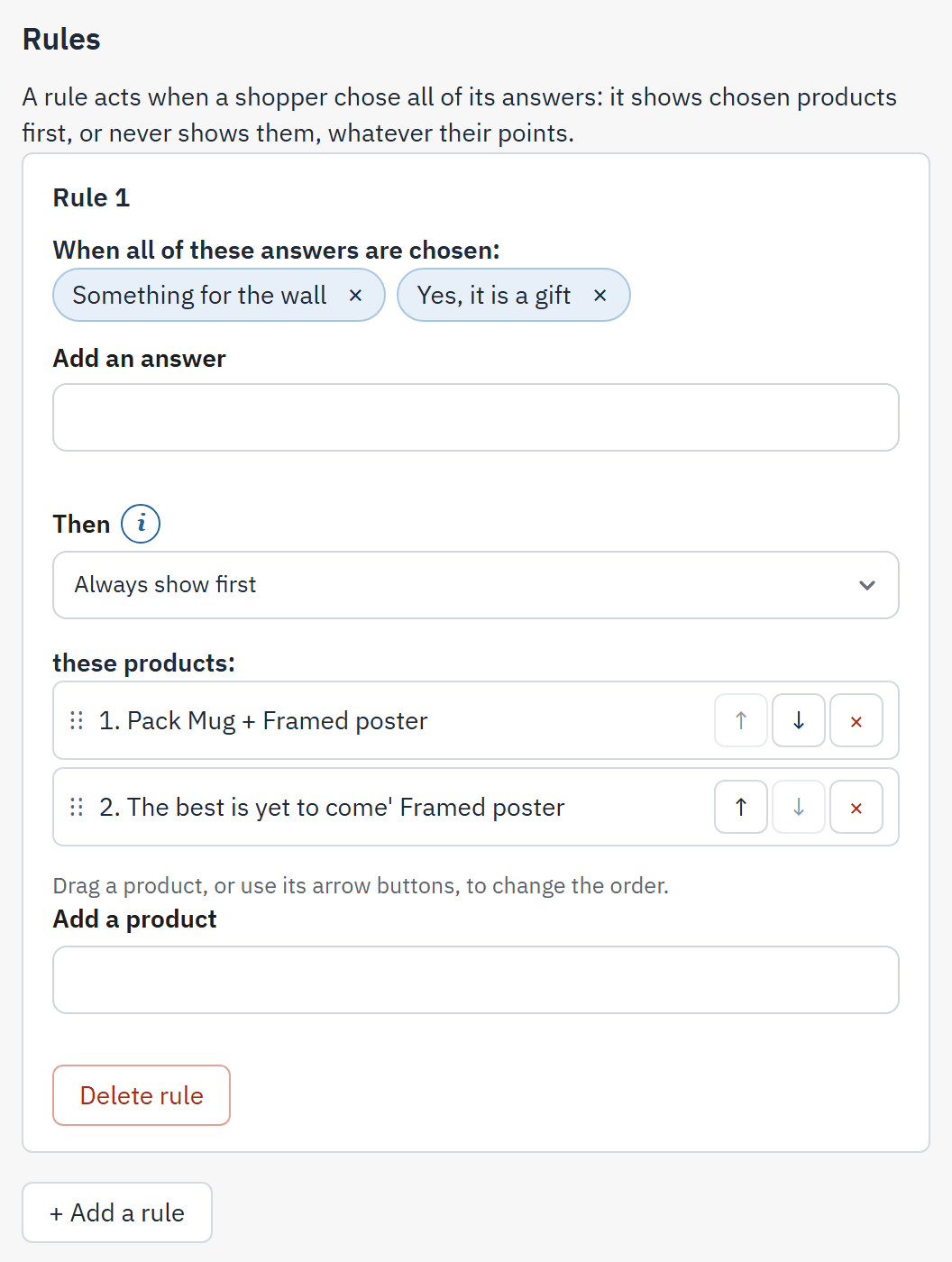
- When all of these answers are chosen: and the answers.
- Then: the action.
- these products: and the products, in the order they are shown.
| Action | Effect |
|---|---|
| Always show first | These products lead the results, in the order below. |
| Never show | These products are removed from the results, whatever their points. |
| Add points (advanced) | Kept from version 1: the points are added to the products' totals. Default: 0. |
A rule needs at least one answer and one product, and acts only when the shopper chose all of its answers. The editor refuses two answers of the same one-choice question in one rule and says why, because a shopper can never choose both. Rules have no preview: use Try it to see what they do.
The results page
Select Results page to set what shoppers see after the last question.
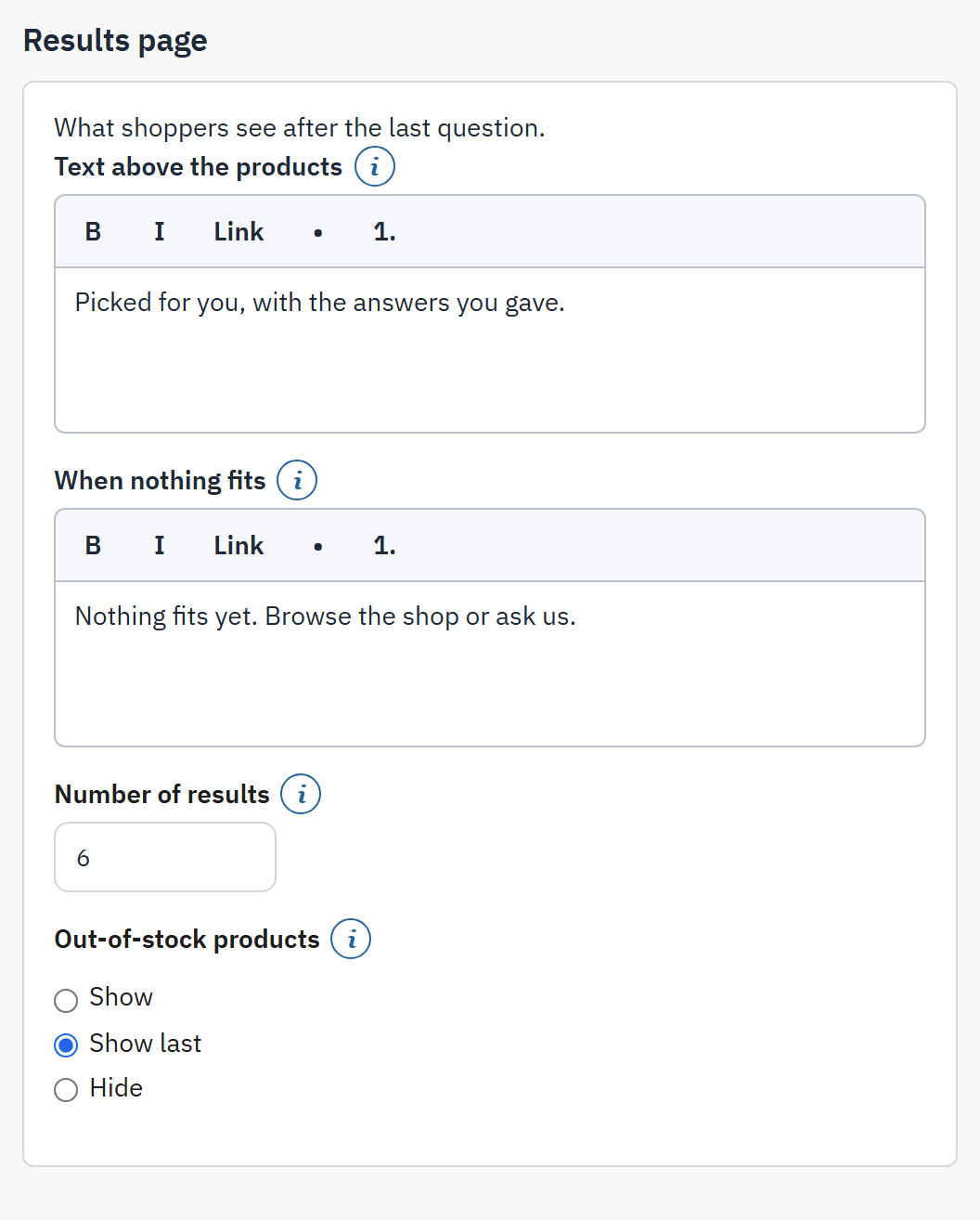
- Text above the products: shown above the recommended products. Empty: no text.
- When nothing fits: shown instead of products when no product fits the answers, for example with a link to your contact page. Empty: a short standard sentence.
- Number of results: how many products the page shows, from 1 to 48. Default: 6.
- Out-of-stock products.
| Out-of-stock products | Effect |
|---|---|
| Show | Ranked like the others. |
| Show last | After the products in stock. This is the default. |
| Hide | Left out. |
The two texts accept simple formatting: bold, italic, lists and links. A link address must start with https://, http:// or mailto:.
The contact card
Select Contact card to decide whether shoppers can leave their details before the results.
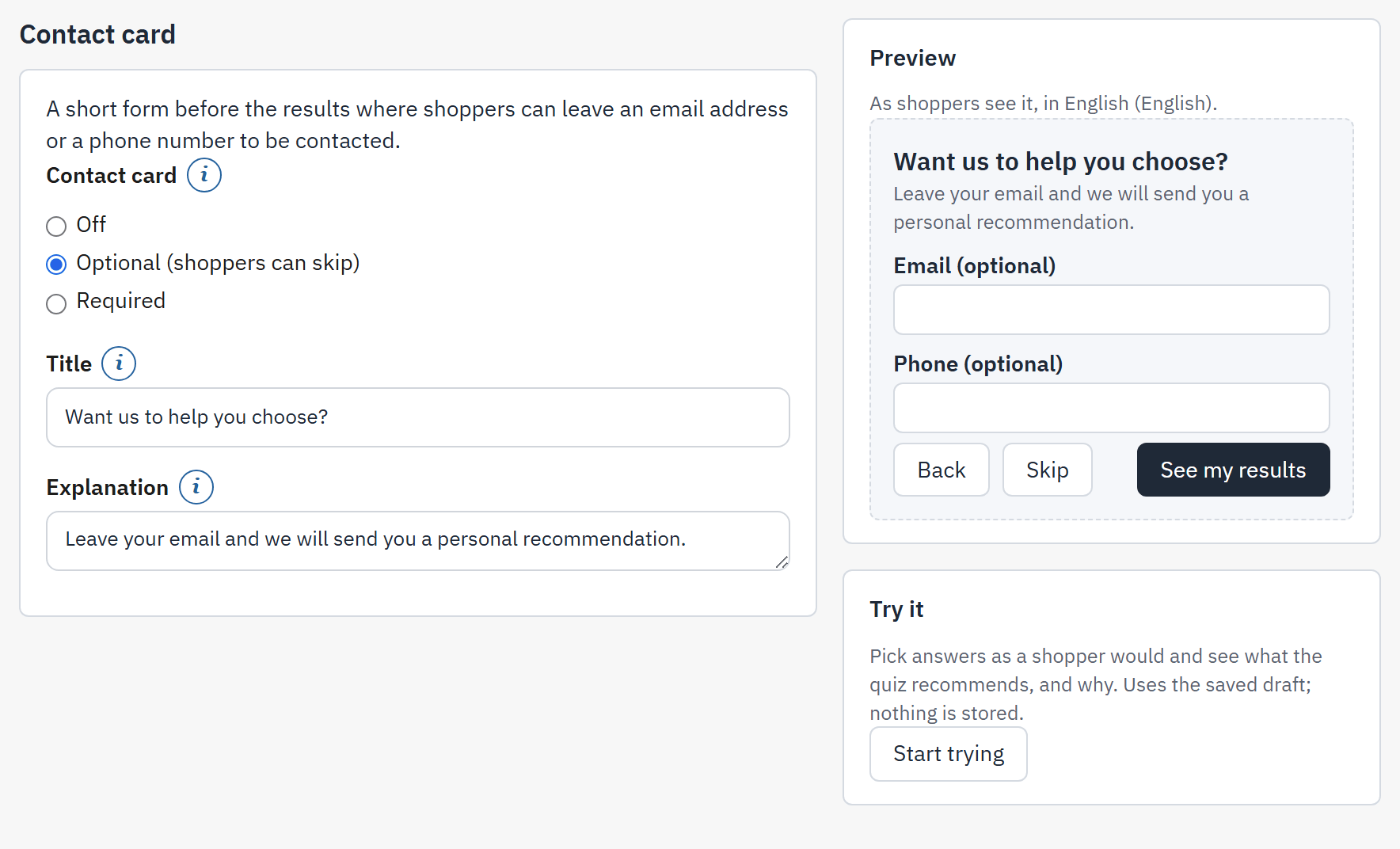
- The choice between Off, Optional (shoppers can skip) and Required.
- Title of the card. Empty: “Want help choosing?” in the shopper's language.
- Explanation: a few lines under the title saying what you will do with the details.
- The preview of the card.
| Choice | Effect |
|---|---|
| Off | The results come straight after the last question. This is the default. |
| Optional (shoppers can skip) | Shoppers can leave their details or skip. |
| Required | Shoppers must leave a valid email address to see their results. |
The link to the privacy policy page you chose in Contact and privacy is shown below the explanation. When the card is on and no privacy policy page is chosen, the publish checks warn you (The publish checks).
Settings of a quiz
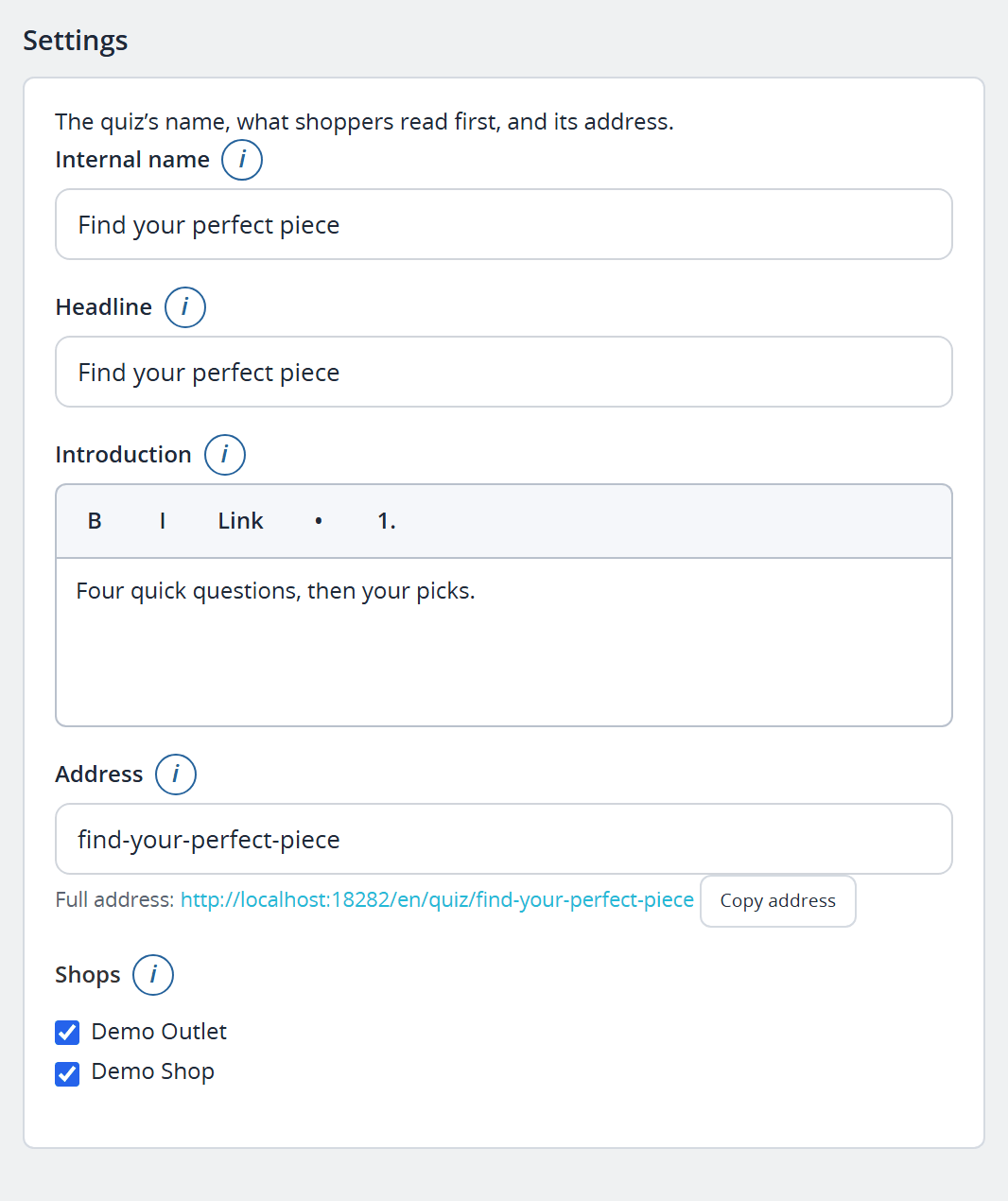
- Internal name: only you see it, in the list of quizzes, in reports and in the contact list.
- Headline: the heading of the quiz page and its title in search engines.
- Introduction: shown under the headline, before the first question. Empty: no introduction.
- Address: the last part of the quiz page address, with the Full address: below it.
- Shops, in a multistore.
The address starts as a form of the name: lower-case letters, digits and single hyphens. A change of address takes effect at once, without publishing, and the old address stops working. Another quiz cannot use the same address. In a multistore, Shops chooses the shops where the quiz can be shown (default: every shop), also at once; keep at least one shop.
Languages
The language tabs in the header list the active languages of the shop. Every text of the quiz is written per language: question, hint, answers, headline, introduction, the results texts and the contact card. Select a tab to write in that language; a tab marked (texts missing) has something empty. The right column then shows the quiz in that language.
An empty text in a language falls back to the default language's text for shoppers, so a quiz is never blank. A language added to the shop later starts with the texts of the default language: write its texts and publish the quiz again. The checklist names a live quiz that has no copy in a language yet.